LangChain1.0-Agent-部署/上线(开发人员必备)
发布时间:2026-02-05 23:58:57编辑:123阅读(2142)
LangChain Agent开发必备工具套件
在对LangChain 1.0有了一定的基础了解之后,对于开发者来说,还需要进一步了解和掌握LangChain Agent必备的开发者套件。分别是LangChain Agent运行监控框架LangSmith、底层LangGraph图结构可视化与调式框架LangGraph Studio和LangGraph服务部署工具LangGraph Cli。
可以说这些开发工具套件,是真正推动LangGraph的企业级应用开发效率大幅提升的关键。同时监控、调试和部署工具,也是全新一代企业级Agent开发框架的必备工具,也是开发者必须要掌握的基础工具。
LangGraph运行监控框架:LangSmith
官网地址:https://docs.langchain.com/langsmith/home
LangSmith 是一款用于构建、调试、可视化和评估LLM工作流的全生命周期开发平台。它聚焦的不是模型训练,而是我们在构建AI应用(尤其是多工具Agent、LangChain/Graph)时的可视化调试、性能评估与运维监控。
LangGraph图结构可视化与调试框架:LangGraph Studio
官网地址:https://docs.langchain.com/langsmith/studio#langsmith-studio
LangGraph Studio是一个用于可视化构建、测试、分享和部署智能体流程图的图形化IDE+运行平台。
LangGraph服务部署工具:LangGraph Cli
官网地址:https://docs.langchain.com/langsmith/cli#langgraph-cli (需要代理环境)
LangGraph Cli是用于本地启动、调试、测试和托管LangGraph智能体图的开发者命令行工具。
LangGraph Agent前端可视化工具:Agent Chat UI
官网地址:https://docs.langchain.com/oss/javascript/langchain/ui#agent-chat-ui
Agent Chat UI是LangGraph/LangChain 官方提供的多智能体前端对话面板,用于与后端Agent(Graph或Chain)进行实时
交互,支持上传文件、多工具协同、结构化输出、多轮对话、调试标注等功能。
借助LangGraph Cli创建完整智能体项目:
LangGraph Studio:桌面版应用和本地运行(适用于所有操作系统);
LangServer:最终构建出来的服务,提供Assiatant API接口;
Python/JS SDK:通过接口可以直接和LangServer提供的各个API接口连接;
Remote Graph:类似于之前LangServer的用法,可以直接用Graph的接口去调用,这样拿到的Graph就是一个Runable对
象,可以去调用它的invoke,batch等。
LangGraph Studio是专为LangGraph图式代理打造的本地/云端IDE,具备可视化节点和状态及实时调试功能。
接下来使用LangGraph Cli来创建一个完整的LangGraph Agent项目,并在此过程中使用LangGraph Chat Agent UI进行前端
对话,以及使用LangGraph Studio进行架构实时演示,并使用LangSmith进行运行效果监督。
LangGraph智能体项目流程:
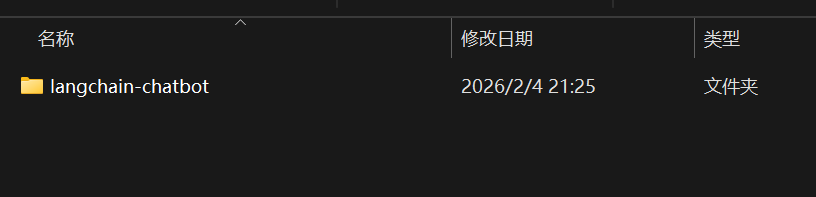
1 创建一个LangChain Agent项目主文件夹
这里创建一个LangChain-Chatbot文件夹
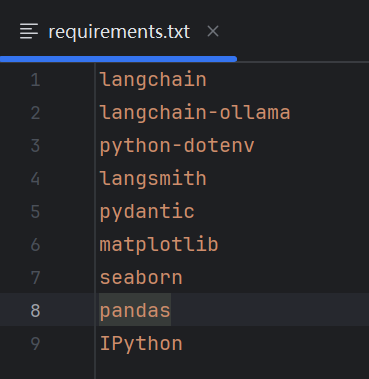
2 创建requirements.txt文件
在LangChain-Chatbot文件夹中,新建一个requirements.txt,里面需要填写在运行该项目时需要安装的依赖项:
3 注册LangSmith
对于企业级的Agent项目,为了更好的监控智能体实时运行情况,可以考虑借助LangSmith进行追踪(会将智能体运行情况
实时上传到LangGraph官网进行展示)
LangSmith登录页面:https://smith.langchain.com/ 创建API_key
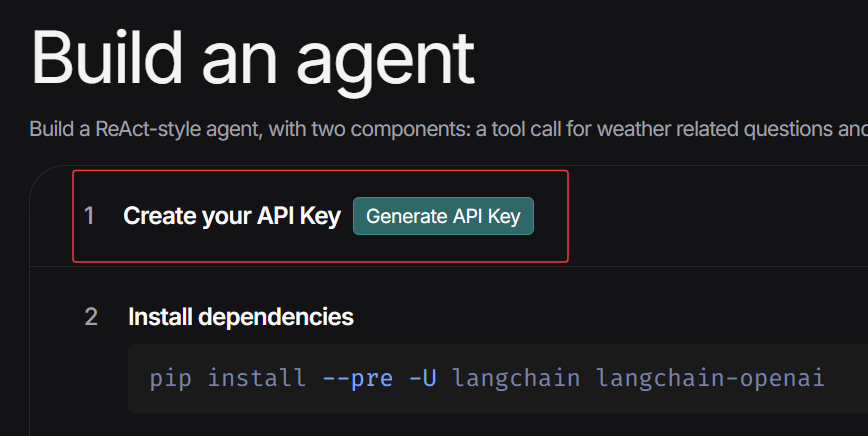
在构建程序跟踪前,首先需要创建一个API密钥,该密钥将允许我们的项目开始向Langsmith发送跟踪数据。创建完密钥后,在
后续配置环境变量设置开启追踪、并输入密钥即可接入LangSmith.
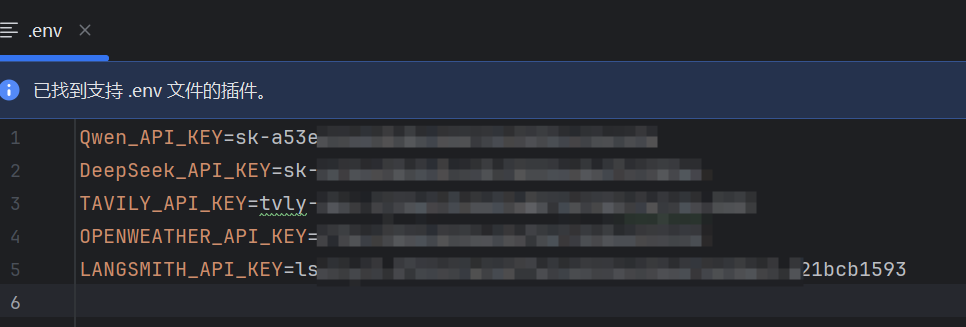
4 创建.env配置文件
在LangChain-Chatbot文件夹中,新建一个.env文件,将敏感信息(如API密钥)放在环境变量中而不是硬编码。
5 创建agent.py核心文件
在LangChain-Chatbot文件夹中,新建一个agent.py文件,在该文件中编写构建图的具体运行逻辑,如状态、节点、边、图的
编译等。此外,在使用LangGraph CLI创建智能体项目时,会自动设置记忆相关内容,并进行持久化记忆存储,无需手动设置
代码:
from langchain_ollama import ChatOllama
from langchain.agents import create_agent
from langchain_core.tools import tool
from pydantic import BaseModel,Field
import requests
import time
from lxml import etree

class Weather(BaseModel):
    city:str = Field(description="城市地名")

class SearchBing(BaseModel):
    keyword:str = Field(description='搜索关键词')

@tool(args_schema=SearchBing)
def search_bing(keyword):
    """
    搜索内容函数
    :param keyword: 必要参数,字符串类型。用于表示搜索的具体关键词
    :return: 返回搜索出来的结果,dict类型
    """
    url = f'https://www.bing.com/search?q={keyword}'
    # //li[@class='b_algo']/div[@class='b_caption']/p
    headers = {
        "sec-ch-ua": '"Not(A:Brand";v="8", "Chromium";v="144", "Google Chrome";v="144"',
        "user-agent": "Mozilla/5.0 (Windows NT 10.0; Win64; x64) AppleWebKit/537.36 (KHTML,
        like Gecko)
         Chrome/144.0.0.0 Safari/537.36"
    }
    response = requests.get(url=url, headers=headers, timeout=10)
    html = etree.HTML(response.text)
    res = html.xpath("//li[@class='b_algo']/div[@class='b_caption']/p/text()")
    ret = {}
    for num, value in enumerate(res):
        ret.setdefault(num, value)
    print(f"搜索关键词:{keyword}, 搜索结果:{ret}")
    return ret


@tool(args_schema=Weather)
def get_weather(city):
    """
    查询即时天气函数
    :param city: 必要参数,字符串类型。用于表示查询天气的具体城市名称
    :return: 返回即时天气的结果,dict类型
    """
    today_time = time.strftime("%Y-%m-%d",time.localtime())
    url = f'https://www.ks121.com/history/?location={city}&startdate={today_time}&enddate={today_time}'
    headers = {
        "sec-ch-ua": '"Not(A:Brand";v="8", "Chromium";v="144", "Google Chrome";v="144"',
        "user-agent": "Mozilla/5.0 (Windows NT 10.0; Win64; x64) AppleWebKit/537.36 (KHTML,
        like Gecko)
         Chrome/144.0.0.0 Safari/537.36"
    }
    response = requests.get(url=url, headers=headers, timeout=10)
    html = etree.HTML(response.text)
    res = html.xpath("//div[@class='box']/div[2]/div[1]/div/table/tbody/tr")
    ret = {}
    for i in res:
        one = i.xpath("./td[1]/p[2]/text()")[0]
        two = i.xpath("./td[2]/p[2]/span/text()")[0]
        three = i.xpath("./td[3]/p/text()")[0]
        four = i.xpath("./td[4]/p/text()")[0]
        ret.setdefault('日期', one)
        ret.setdefault('气象', two)
        ret.setdefault('温度', three)
        ret.setdefault('风级', four)
    print(f"{today_time}:{city}天气信息:{ret}")
    return ret

# model = ChatDeepSeek(model='deepseek-chat')
model = ChatOllama(
    model="qwen3:8b",
    temperature=0,
    top_p=0.95,
)
prompt = """
你是一名乐于助人的智能助手,擅长根据用户的问题选择合适的工具来查询信息并回答。

当用户的问题涉及**天气信息**时,提取用户问题中的城市,调用‘get_weather’工具,查询指定城市的实时天气,并在
回答中总结查询结果。

当用户的问题涉及**新闻、事件、实时动态**时,输入需要搜索的文本,调用'search_bing'工具,检索相关的最新信息,并
在回答中简要概述。

如果问题既包含天气又包含新闻,先使用‘get_weather’查询天气,在使用'search_bing'查询新闻,最后将结果合并后
回复用户。

所有回答使用**简体中文**,条理清晰、简洁友好。
"""
tools = [search_bing, get_weather]

# 创建图
agent = create_agent(model=model, tools=tools, system_prompt=prompt)
res = agent.invoke({"messages":[{"role":"user", "content":"今天北京,上海的天气,AI最新新闻"}]})
print(res['messages'][-1].content)
6 创建langgraph.json文件
在LangChain-Chatbot文件夹中,新建一个langgraph.json文件,在该json文件中配置项目信息,遵循规范如下所示:
必须包含dependencies和graphs字段
graphs字段格式:"图名":"文件路径:变量名"
配置文件必须放在于Python文件同级或更高级的目录
项目文件的名称必须为langgraph.json,如下所示:
{
"dependencies": ["./"],
"graphs": {
"chatbot": "./agent.py:agent"
},
"env": ".env"
}
其中:
dependencies:["./"] -- 告诉langgraph在当前目录查找依赖项(会自动读取requirements.txt)
chatbot:"./graph.py:graph" -- 定义图名为chatbot,来自graph.py文件中的graph变量
env:".env"-- 指定环境变量文件位置
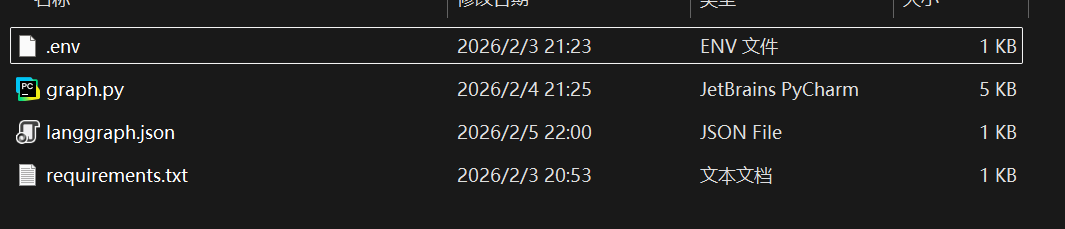
进入到langgraph-chatbot文件夹,安装相关基础依赖
D:\langchain-chatbot>pip install -r requirements.txt
7 安装langgraph-cli以及其他依赖,执行如下代码
pip install -U "langgraph-cli[inmem]"
在终端执行LangGraph dev启动项目-后端程序
langgraph dev
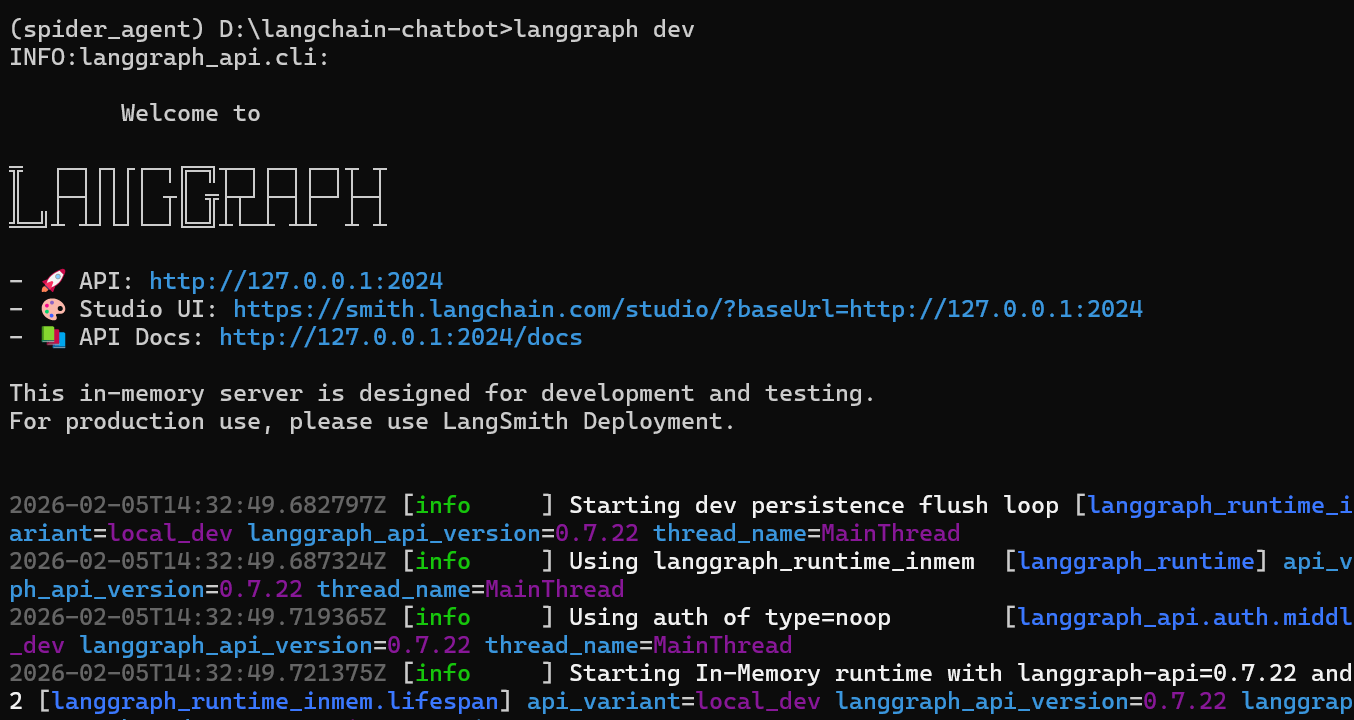
启动项目后可以看到最开始有三个访问的url地址
- 🚀 API: http://127.0.0.1:2024
- 🎨 Studio UI: https://smith.langchain.com/studio/?baseUrl=http://127.0.0.1:2024
- 📚 API Docs: http://127.0.0.1:2024/docs
第一个连接是当前部署完成后的服务端口
第二个是LangGraph Studio的可视化页面
第三个端口是端口说明
程序会自动跳转到LangSmith的url地址,没有自动跳转的话,可以手动复制url地址访问
Studio UI: https://smith.langchain.com/studio/?baseUrl=http://127.0.0.1:2024
可以看到Agent架构:
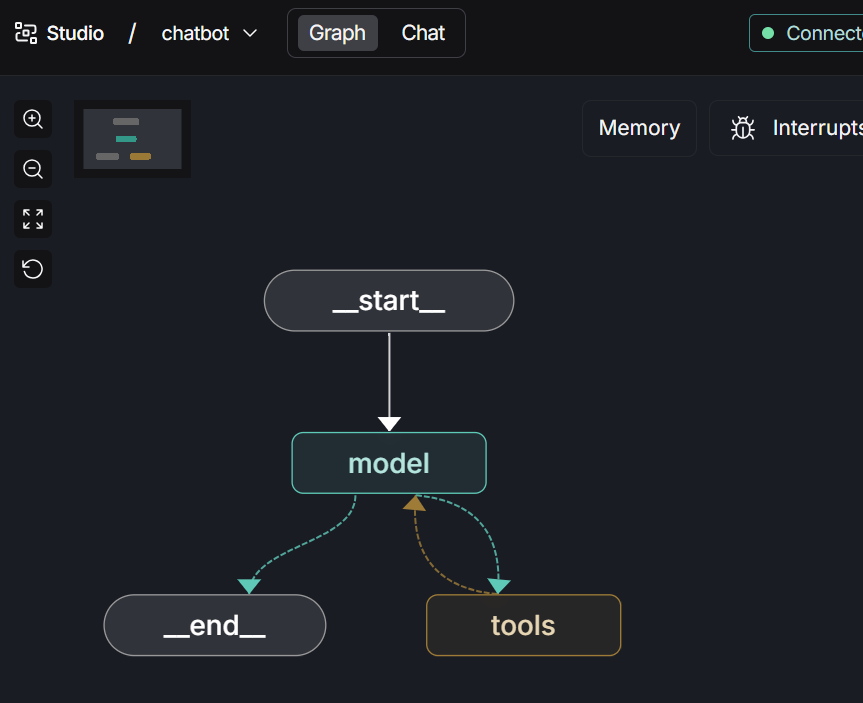
LangChain Agent部署后调用流程
后端服务接口调用API文档
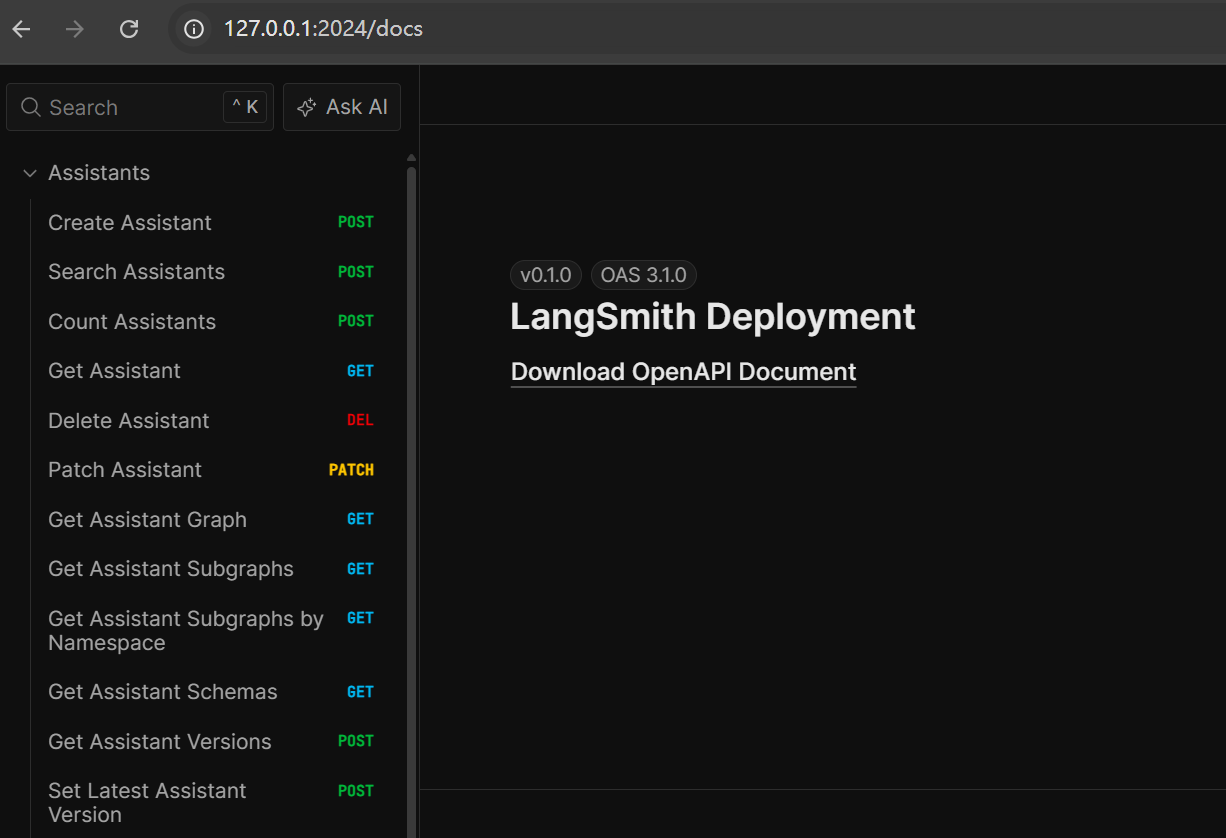
这些暴露的接口和调用方法,接下来就可以用于进行进一步开发和测试。
LangGraph Studio
可以点击Studio UI中显示的链接,在浏览器中打开并访问Studio,并且可以在页面中进行Agent测试。
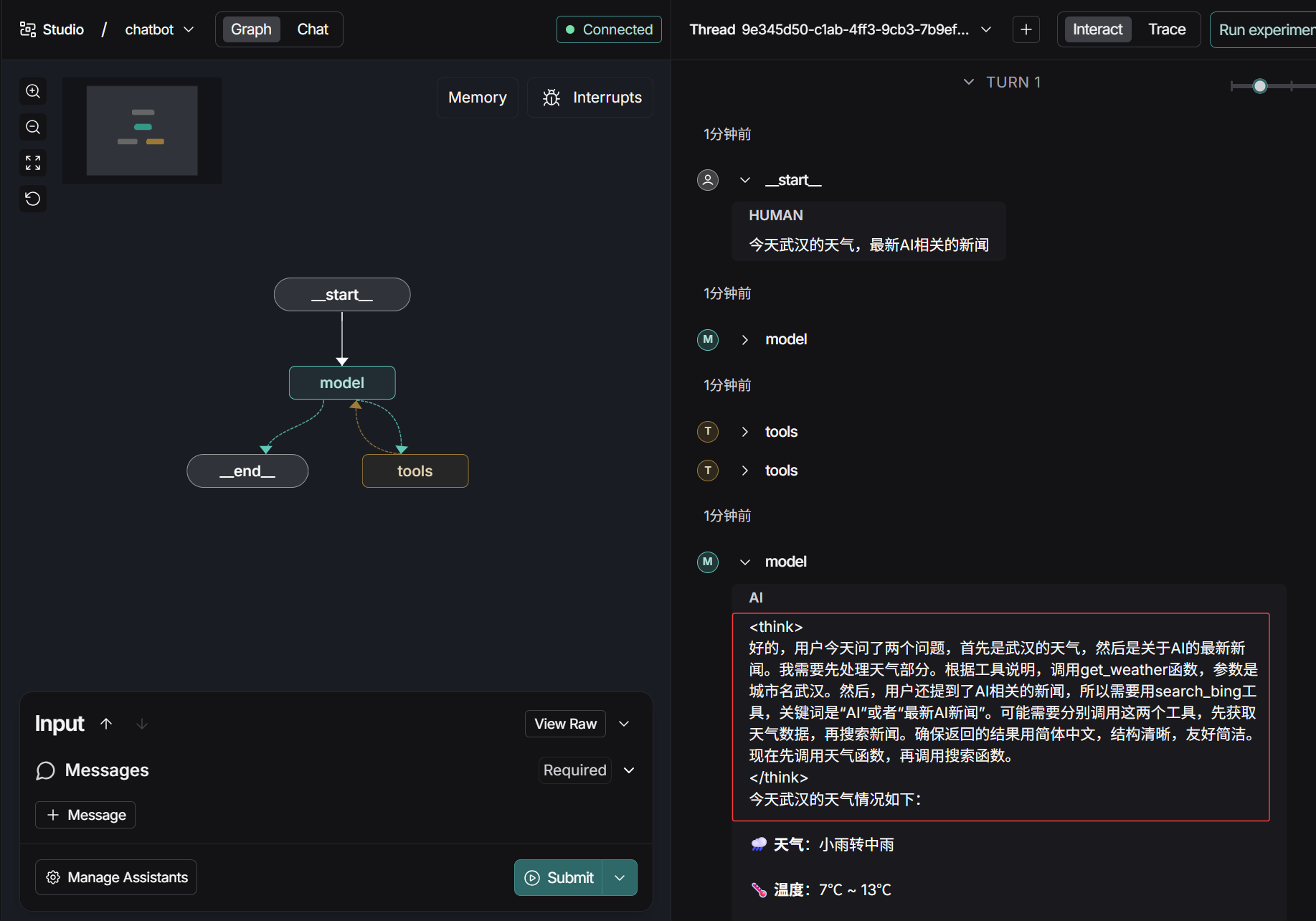
LangSmith : https://smith.langchain.com/
如果此前设置了追踪,此时就能在LangSmith中看到当前项目运行情况,相当于运维工具.
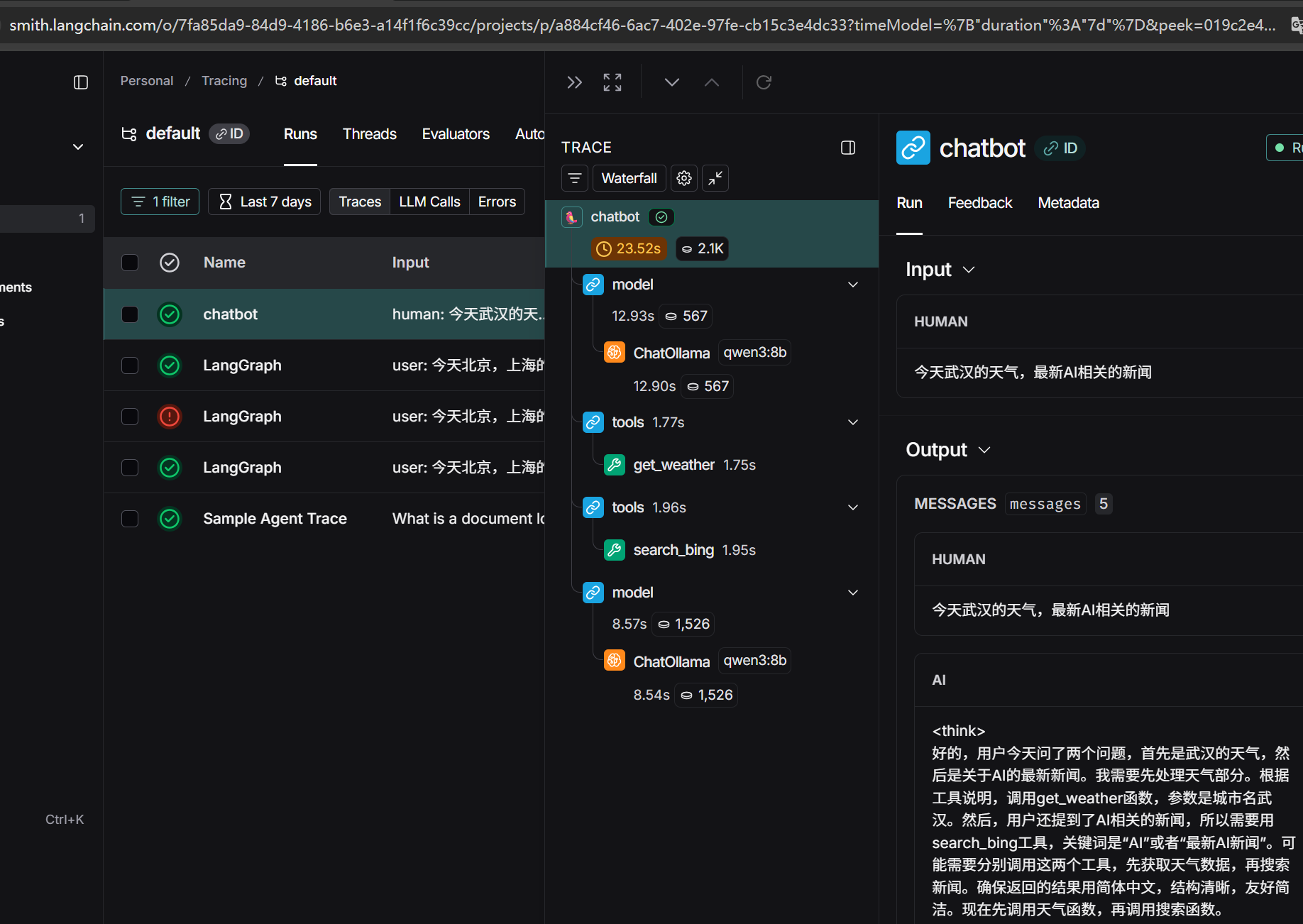
LangChain Agent后端接入Agent Chat UI前端完整流程
github项目主页:https://github.com/langchain-ai/agent-chat-ui
克隆项目:
D:\langchain-chatbot>git clone https://github.com/langchain-ai/agent-chat-ui
Cloning into 'agent-chat-ui'...
remote: Enumerating objects: 2399, done.
remote: Total 2399 (delta 0), reused 0 (delta 0), pack-reused 2399 (from 1)
Receiving objects: 100% (2399/2399), 947.30 KiB | 1.74 MiB/s, done.
Resolving deltas: 100% (1410/1410), done.
cd agent-chat-ui
D:\langchain-chatbot>cd agent-chat-ui
安装npm
node.js官网:https://nodejs.org
根据系统版本下载对应的包并安装nodejs:node-v24.13.0-x64.msi
npm install -g pnpm
pnpm -v
D:\langchain-chatbot\agent-chat-ui>pnpm install
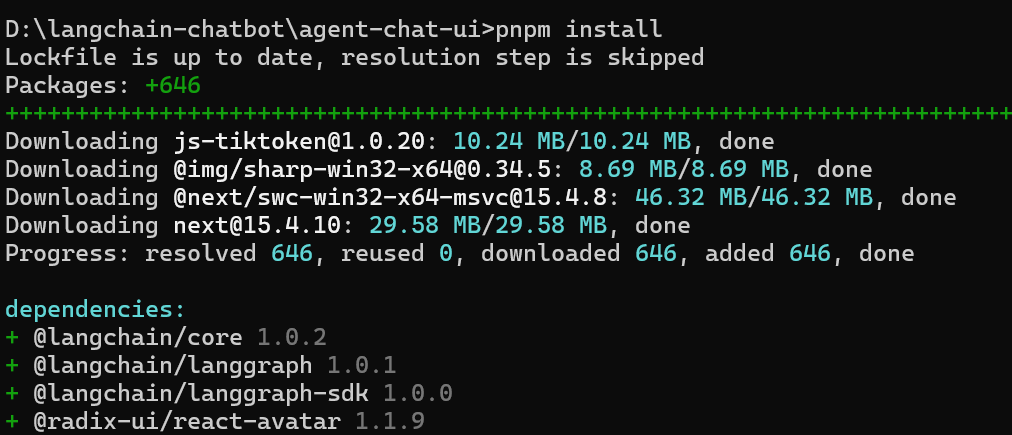
开启Chat Agent UI
pnpm dev
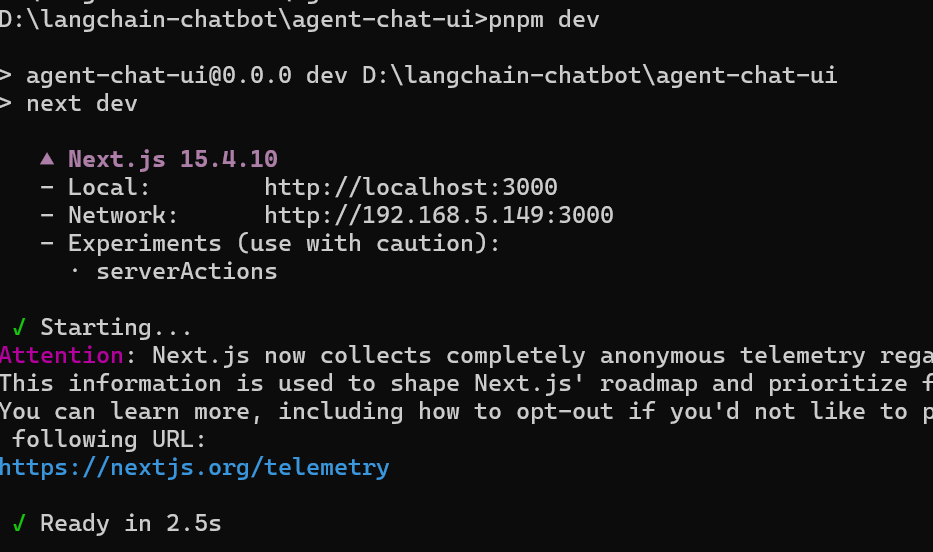
访问Network地址:http://192.168.5.149:3000/
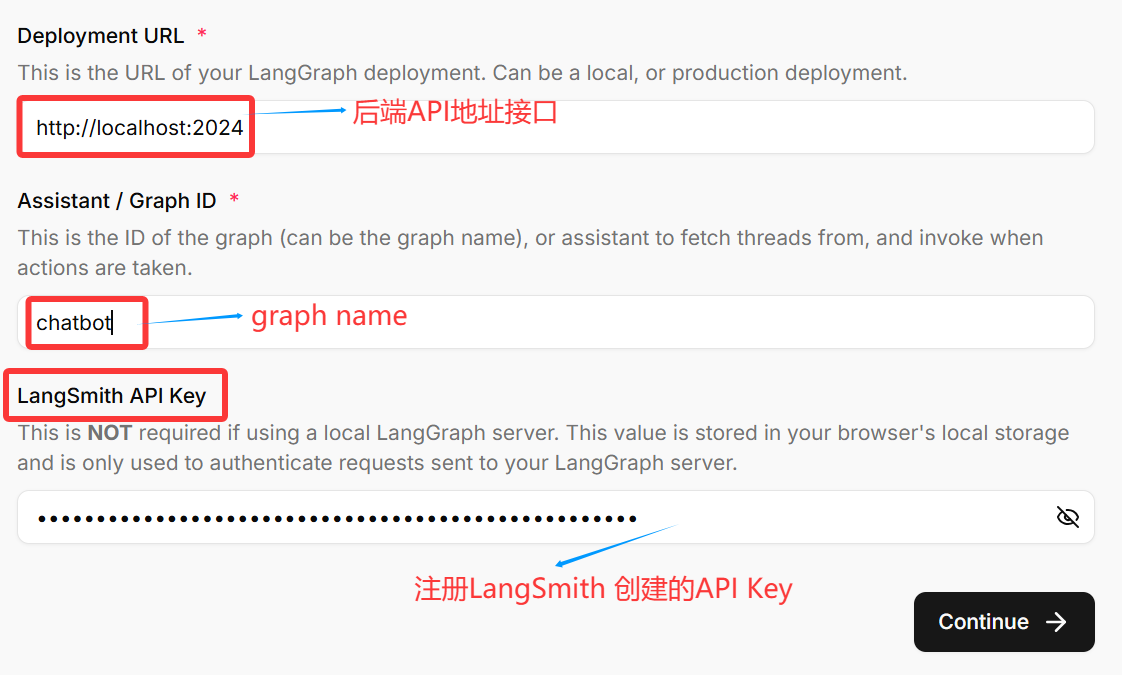
点击continue
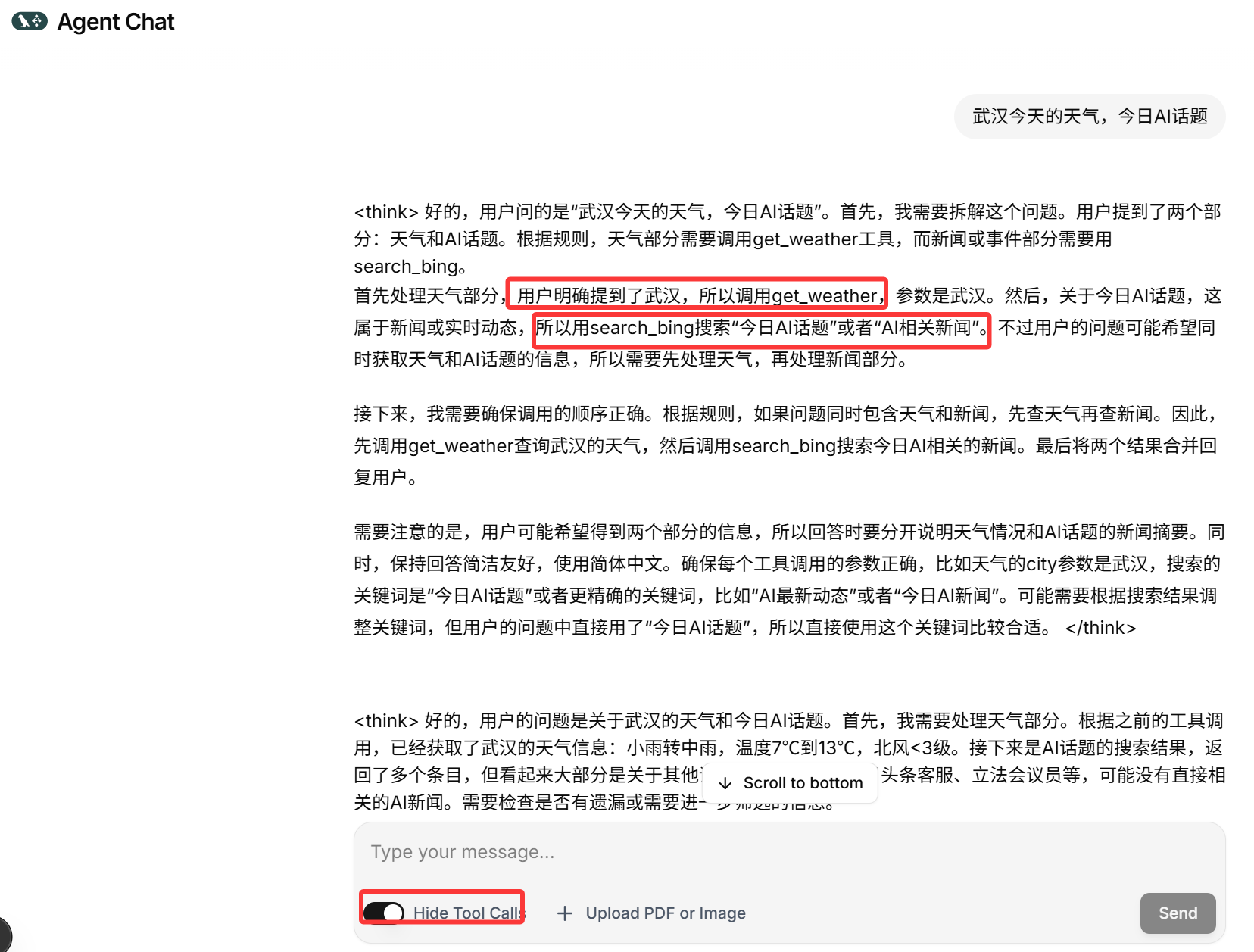
前端对话页面
- H3C基本命令大全
54491
- H3C IRF原理及 配置
41279
- Python exit()函数
35823
- python全系列官方中文文档
31352
- python 获取网卡实时流量
26249
- 1.常用turtle功能函数
25952
- python 获取Linux和Windows硬件信息
24457
- 天天基金网数据接口
20036
- Selenium使用代理IP&无头模式访问网站
16037
- Selenium&Pytesseract模拟登录+验证码识别
15466
- LangGraph Studio可视化
2392°
- LangSmith开发-应用入门
2185°
- LangGraph开发-多轮对话问答机器人
2279°
- LangGraph开发-条件分支/循环图实战
2398°
- LangGraph开发-生态介绍,入门demo实战
2355°
- LangChain-接入12306-HTTP MCP智能体
2573°
- LangChain接入自定义爬虫-MCP工具
2511°
- LangChain接入Filesystem-MCP工具
2341°
- LangChain搭建MCP服务端和客户端流程
2406°
- LangGraph与MCP技术概述
2379°
- 姓名:Run
- 职业:谜
- 邮箱:383697894@qq.com
- 定位:上海 · 松江